Video studio
AI Video Generator No Restrictions
Every workflow has input, output and usage conditions. “No restrictions” in a search query should not be read as a promise to remove them. Check accepted references and choose an output specification before beginning.

A clearer creative process
More control over your next idea.
Explore the text to video workflow, with clear input controls and model-specific limits. Start with one clear intention, then refine the setting, style and output format without losing your place.
Content labels alone do not tell you which prompts a model accepts. Compare actual inputs and policies instead of assuming that every model behaves the same way.
Three steps. Your direction.
A starting point, not a learning curve.
Bring your starting point
Write a brief and select authorized reference media.
Make it your own
Choose a compatible model and review its input limits, ratio and output settings.
Review, then keep creating
Review your inputs and model settings before starting a task. Check the result and refine your brief for the next creation.
Good questions
A few things to know.
What should I know about this search topic?
Every workflow has input, output and usage conditions. “No restrictions” in a search query should not be read as a promise to remove them. Check accepted references and choose an output specification before beginning.
What should I prepare for Text to Video?
Begin with a written description. Include the setting, lighting, framing and pace. If you already have a photograph that must define the subject, choose image to video instead of expecting a text prompt to reproduce that photograph.
How do I choose a model?
Choose by input compatibility and the controls your project needs. Open the model selector to review reference requirements, supported parameters and the available credit rule. A model name alone does not establish that it fits every task.
What determines the cost?
The selected model and output settings determine the credit requirement. Membership and one-time credit packs have different roles. Review the pricing page and the task quote before deciding what to run.
Can I use the output commercially?
Rights depend on your source material, the selected provider’s terms and how you plan to use the result. Use authorized inputs and review the Terms of Service; a tool page does not grant rights to a person’s likeness, music or third-party property.
Go a little deeper
Notes for your next creation.
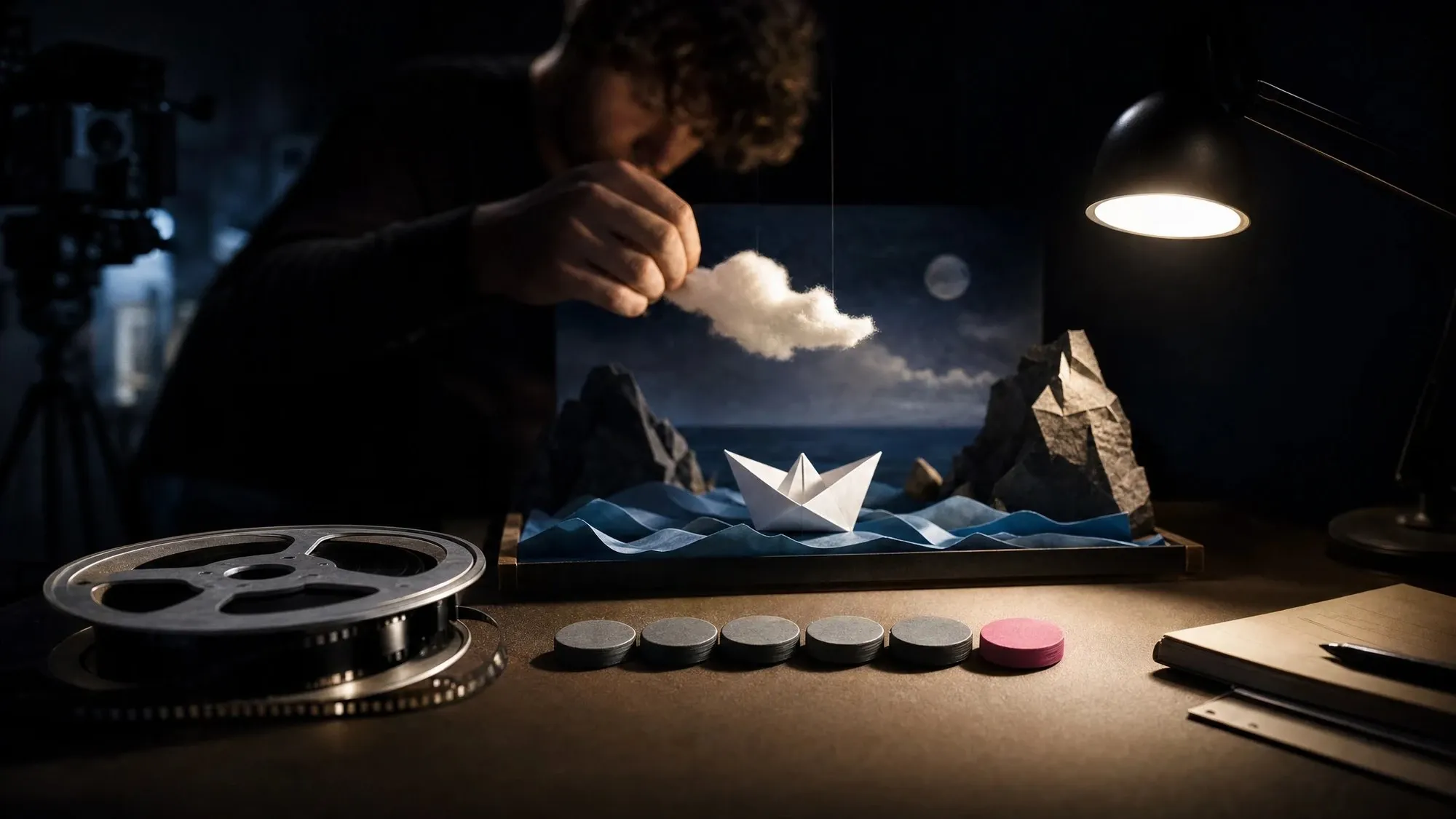
“Free” AI video generators: read the small print
Understand trials, credits, output limits and the difference between configuring a clip and rendering one.
Read story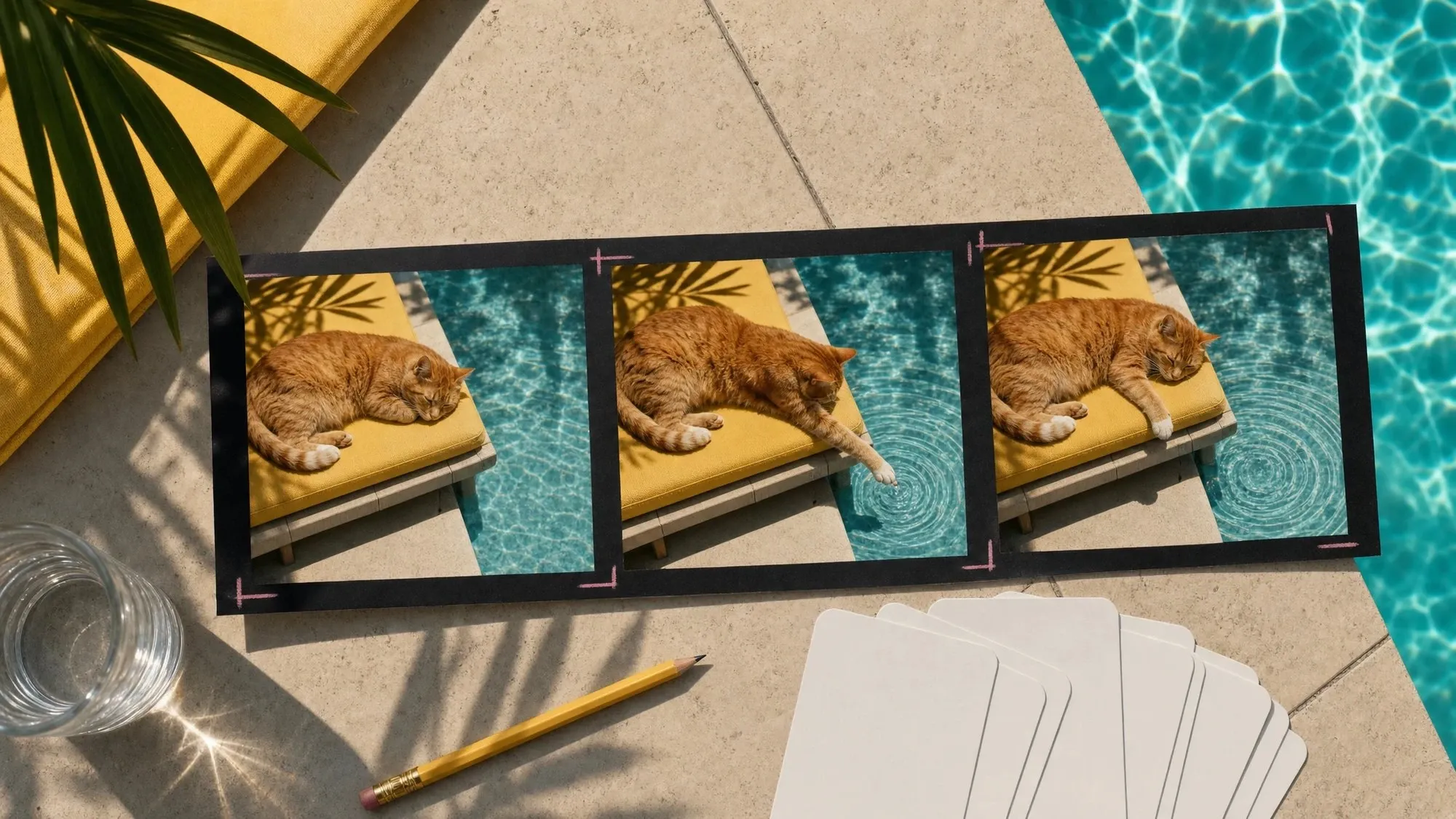
How to turn a still image into a story
A practical shot-planning guide: choose one movement, protect the subject, and give the camera a reason to move.
Read story
Best AI Image Generator for Your Design Brief
Best AI image generator for your brief? Compare four tools by reference controls, export formats, and the revisions you need before choosing a workflow.
Read storyStart with the right material
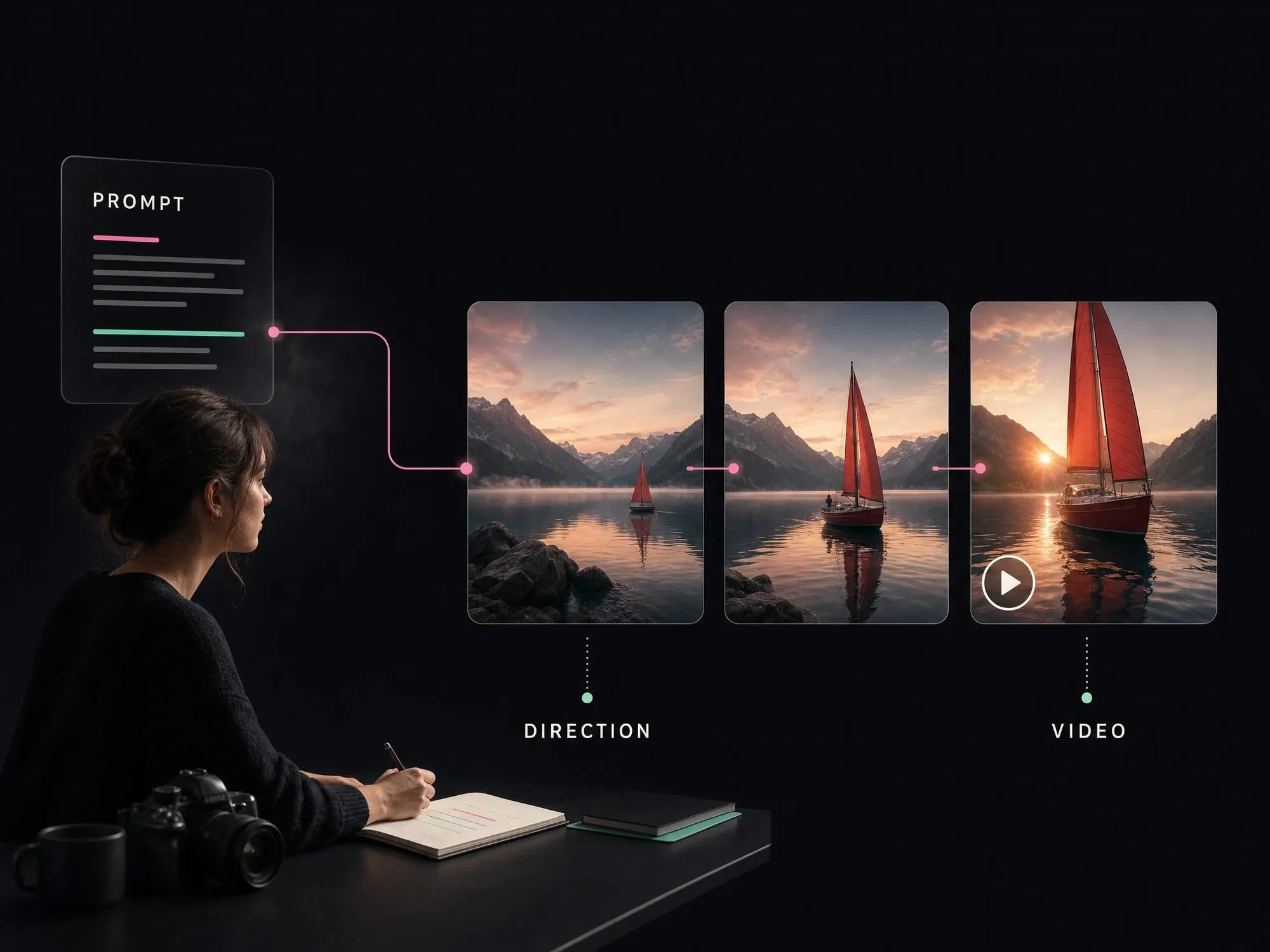
Begin with a written description. Include the setting, lighting, framing and pace. If you already have a photograph that must define the subject, choose image to video instead of expecting a text prompt to reproduce that photograph.
Give the model a useful direction
Write the action in the order it should happen. A slow push toward a still subject is a different shot from a subject moving toward a fixed camera. Keeping those instructions separate makes a prompt easier to evaluate.
Review the details that matter
Review the complete shot for subject changes, camera jumps and inconsistent objects. A strong opening frame does not establish that the motion remains coherent through the final frame.