Image studio
AI Image Generator No Filter
Prompt assistance, reference inputs and style instructions affect the creative brief; they do not disable provider policies. Choose the settings you need and review the actual result against that brief.
A clearer creative process
More control over your next idea.
Explore the ai image generator workflow, with clear input controls and model-specific limits. Start with one clear intention, then refine the setting, style and output format without losing your place.
Content labels alone do not tell you which prompts a model accepts. Compare actual inputs and policies instead of assuming that every model behaves the same way.
Three steps. Your direction.
A starting point, not a learning curve.
Bring your starting point
Write a brief with a subject, setting, light and style.
Make it your own
Choose a compatible model and review its input limits, ratio and output settings.
Review, then keep creating
Review your inputs and model settings before starting a task. Check the result and refine your brief for the next creation.
Good questions
A few things to know.
What should I know about this search topic?
Prompt assistance, reference inputs and style instructions affect the creative brief; they do not disable provider policies. Choose the settings you need and review the actual result against that brief.
What should I prepare for AI Image Generator?
Start with the most important visual information: the main subject, its surroundings, framing and style. If the image needs lettering, keep the wording explicit and inspect it carefully in the result.
How do I choose a model?
Choose by input compatibility and the controls your project needs. Open the model selector to review reference requirements, supported parameters and the available credit rule. A model name alone does not establish that it fits every task.
What determines the cost?
The selected model and output settings determine the credit requirement. Membership and one-time credit packs have different roles. Review the pricing page and the task quote before deciding what to run.
Can I use the output commercially?
Rights depend on your source material, the selected provider’s terms and how you plan to use the result. Use authorized inputs and review the Terms of Service; a tool page does not grant rights to a person’s likeness, music or third-party property.
Go a little deeper
Notes for your next creation.

Best AI Image Generator for Your Design Brief
Best AI image generator for your brief? Compare four tools by reference controls, export formats, and the revisions you need before choosing a workflow.
Read story
Creative freedom in AI images and video: what to check
Understand what “uncensored” and “unrestricted” do—and do not—tell you about an AI creation tool.
Read story
Senzia and Yeri AI: a workflow comparison checklist
What to inspect when comparing low-restriction image tools. No untested quality scores or invented price comparisons.
Read storyStart with the right material
Start with the most important visual information: the main subject, its surroundings, framing and style. If the image needs lettering, keep the wording explicit and inspect it carefully in the result.
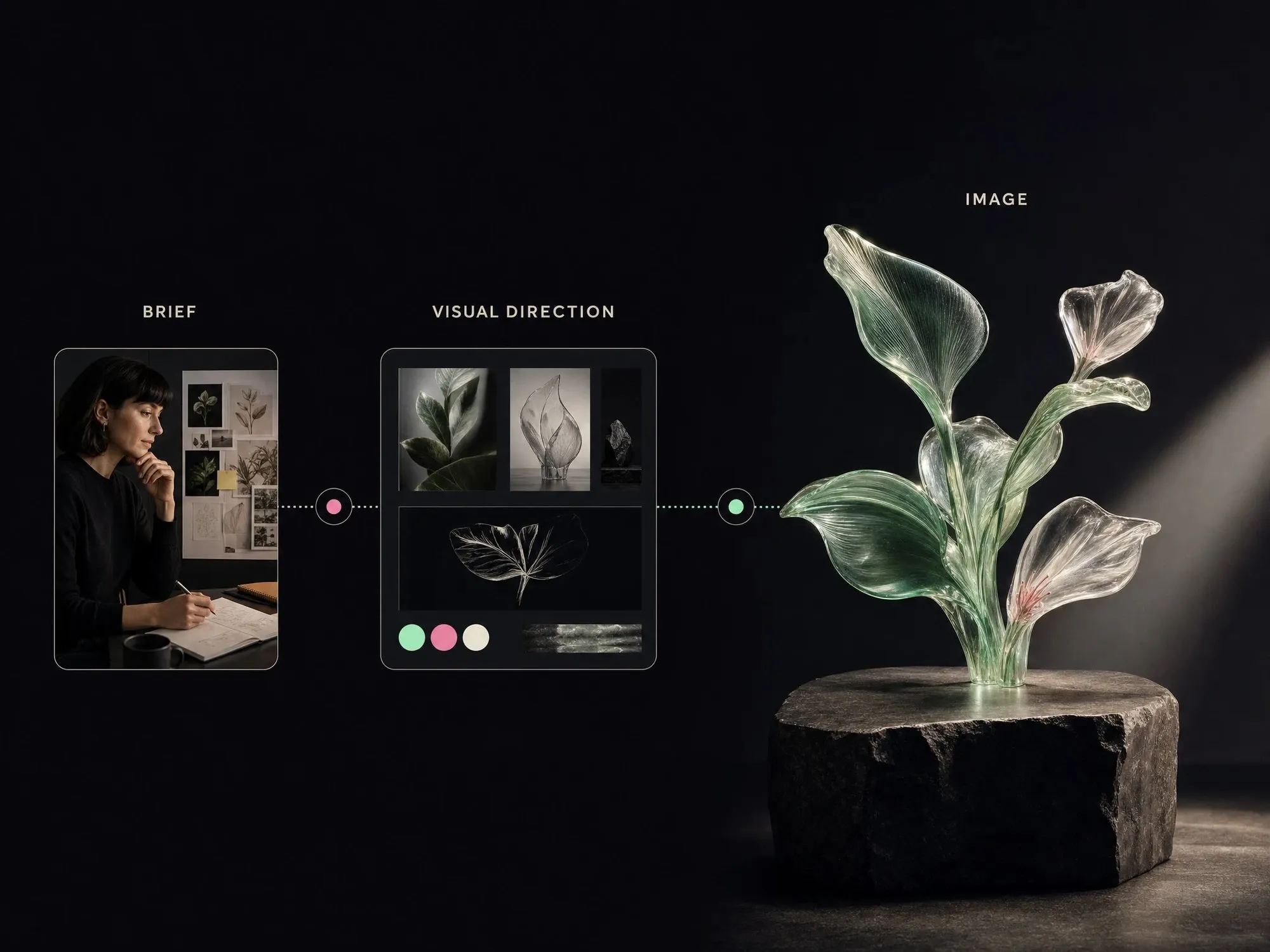
Give the model a useful direction
Build the composition before adding decorative detail. Decide whether the image is a close portrait, a wide environment or an object study. Change one variable at a time when exploring color, lighting or perspective.
Review the details that matter
Inspect hands, small objects, text and repeated patterns. Evaluate whether the image meets the brief before choosing by sharpness alone. Keep the prompt and settings for any version you want to revisit.