Finishing tools studio
AI Background Remover for Images and Video
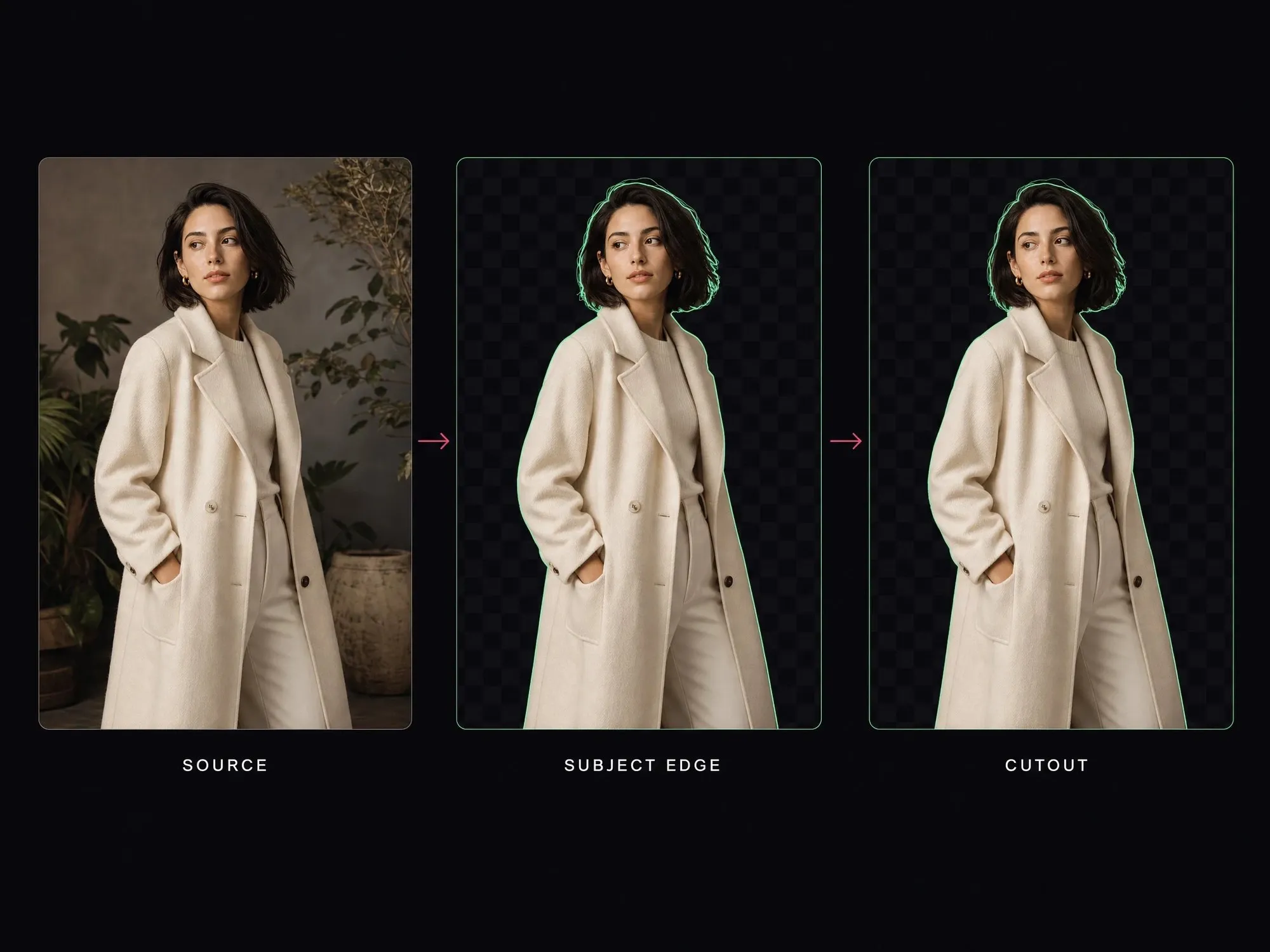
Separate a subject from its original background in an image or video. A readable subject boundary helps when preparing a cutout, combining assets or planning a new visual setting.

A clearer creative process
Inspect difficult edges against two backgrounds
Preview the cutout over both a light and a dark surface where practical. Look for halos, holes and background color left around the subject. In video, watch for edges that flicker when the subject moves or passes behind something.
Example brief: Isolate a plant with thin stems, then preview it on white and charcoal backgrounds. Check for a light halo around the leaves.
Three steps. Your direction.
How to isolate a subject from its background
Choose the input mode
Select a supported image or video workflow and upload a source with a clear subject.
Review the cutout boundary
Check hair, fine outlines, shadows and any partly transparent areas.
Check it in the intended layout
Compare the cutout against the new background or across frames before exporting or compositing.
Good questions
A few things to know.
Can I remove a background from video as well as a photo?
Image and video modes are available where supported. Select the mode that matches the source and review its requirements.
What makes hair difficult to cut out?
Hair can blend with a busy or similarly colored background. Use good contrast and inspect the edge at full size.
Will glass or a sheer fabric stay transparent?
Partly transparent areas are difficult to separate. Compare the result against a light and a dark background.
Does it replace the background with a new scene?
This tool focuses on subject isolation. Use a compatible editor to place a cutout into another scene.
How do I review a video cutout?
Play the whole clip and check moving edges, overlaps and the frames where the subject changes direction.
Start with the right material
Use an image or video with a clear subject and check the selected model’s output options. Image and video background removal may use different configurations; select the input type that matches your source.
Give the model a useful direction
Decide whether you need isolation or a new background. Removing the background and generating a replacement scene are different operations. Preserve an untouched original for comparison.
Review the details that matter
Inspect hair, transparent objects, motion blur and fine edges. Check whether the exported format supports the background treatment you need, especially when planning a transparent image.