Finishing tools studio
AI Video Upscaler
Prepare video for a higher-resolution presentation. Upscaling changes the output specification; useful detail still depends on the source footage and the selected model.

A clearer creative process
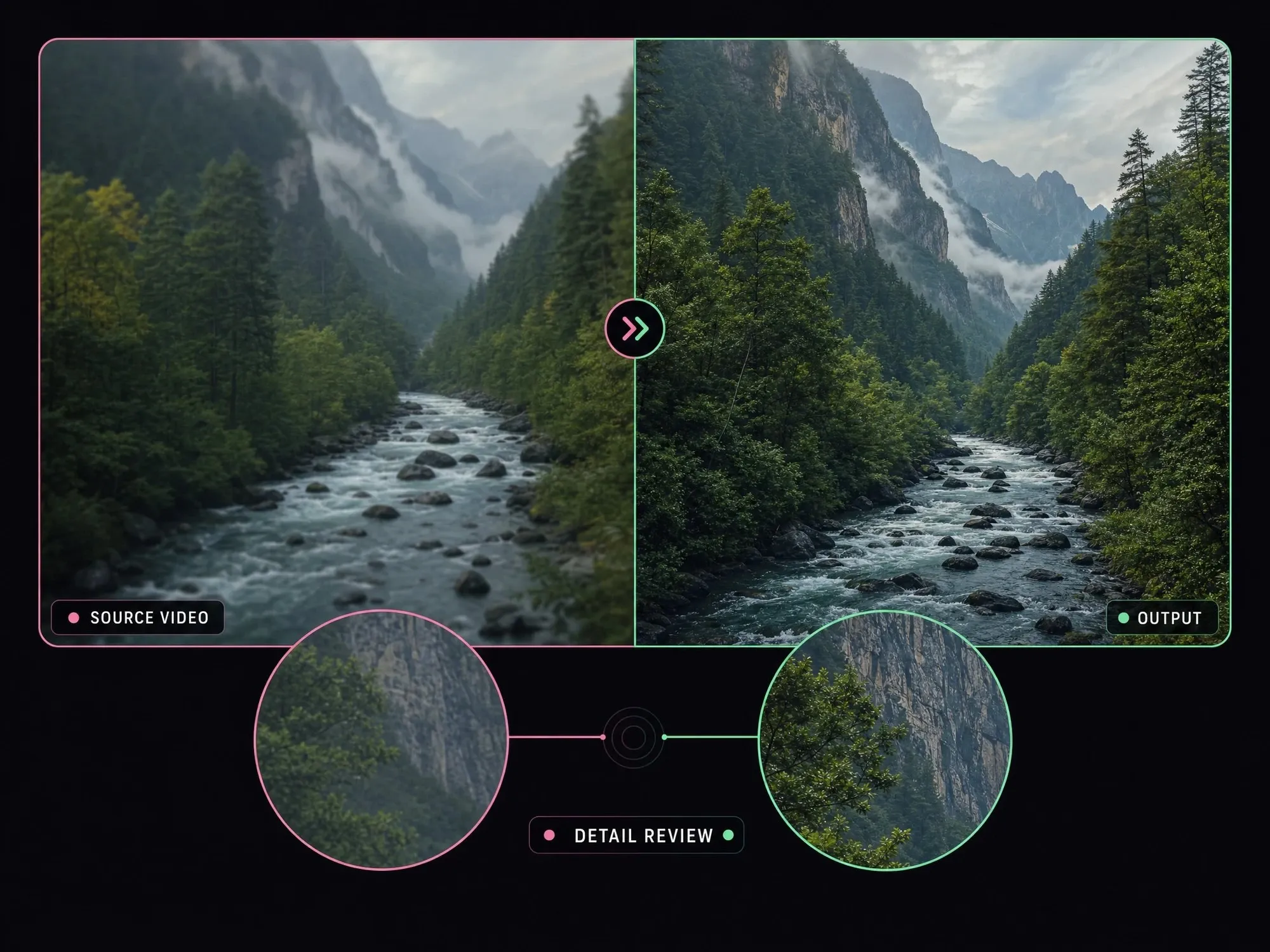
Compare at the same size before judging sharpness
Use the cleanest source available. Heavy compression and motion blur can limit what upscaling can recover. Compare matched crops and inspect moving details, because a sharp still frame can hide shimmer that shows up during playback.
Example brief: Compare a wide street clip before and after upscaling. Inspect shop lettering, roof edges and a moving bicycle at matched timestamps.
Three steps. Your direction.
How to compare an upscaled clip
Choose the cleanest source clip
Prefer the original export over a smaller or heavily compressed copy.
Pick a supported output setting
Choose the available resolution that fits the intended use and check the job requirements.
Check motion and edges
Compare matched crops at the same size and replay detailed areas for artifacts.
Good questions
A few things to know.
Can upscaling recover detail that was never recorded?
It can increase resolution and refine appearance. It cannot reliably restore exact information absent from the source.
Can it fix a clip that is out of focus?
Soft edges may look different after processing, but severe focus errors can remain. Compare the result with the source.
How should I compare two resolutions?
View the same frame and crop at the same on-screen size, then play both clips to check motion.
Why do fine lines shimmer in the result?
Fine texture and compression can vary between frames. Inspect difficult areas before using the higher-resolution file.
Will it crop my video?
Check the output settings available in the workspace and compare the framing of the generated file with the source.
Start with the right material
Choose the best available source rather than a repeatedly compressed copy. Review the supported input, target resolution and processing options. Avoid assuming that a higher pixel count restores detail missing from the original.
Give the model a useful direction
Match the output to the destination: a presentation, a social feed or an editing timeline. Compare a short representative segment before committing to a longer sequence.
Review the details that matter
Inspect motion, edges, text and fine textures at the intended playback size. Watch for exaggerated sharpening, halos and inconsistent detail between frames.