Video studio
AI Video Editor for Prompt-Based Edits
Describe the change you want to make to a video while keeping the original shot as the starting point. A focused editing brief helps separate the part that should change from the appearance, composition and movement that should remain.
A clearer creative process
Separate the requested change from the rest of the shot
A video edit can affect more than the object you mention. Give the instruction a narrow target: change the lamp color, keep the room, and preserve the camera move. When reviewing, look for unintended changes in the background and around moving edges.
Example brief: Change the desk lamp from blue to warm amber. Keep the lamp shape, the desk and the slow leftward camera move unchanged.
Three steps. Your direction.
How to edit a video with a prompt
Choose the shot to edit
Use a clear source clip that contains the change you want to make.
Write one bounded instruction
Say what changes, where it changes and what should stay the same.
Compare the source and edit
Check the target change throughout the clip and inspect adjacent details for drift.
Good questions
A few things to know.
Is this a timeline editor for merging clips?
This workflow makes prompt-based changes to a source clip. Use a timeline editor for joins, tracks or precise cuts.
Can I tell it to keep the camera motion?
State the original motion as something to preserve. Compare the edited clip against the original to see how closely it follows.
Do I need a separate reference image?
A written instruction is the starting point. A reference image is optional where the selected model supports it.
How can I limit edits to one object?
Name the object and location clearly. Include nearby details to preserve, and review for changes outside the intended area.
When should I extend the clip instead?
Use Video Extender to add what happens after the source. Use this editor to change content within the existing clip.
Start with the right material
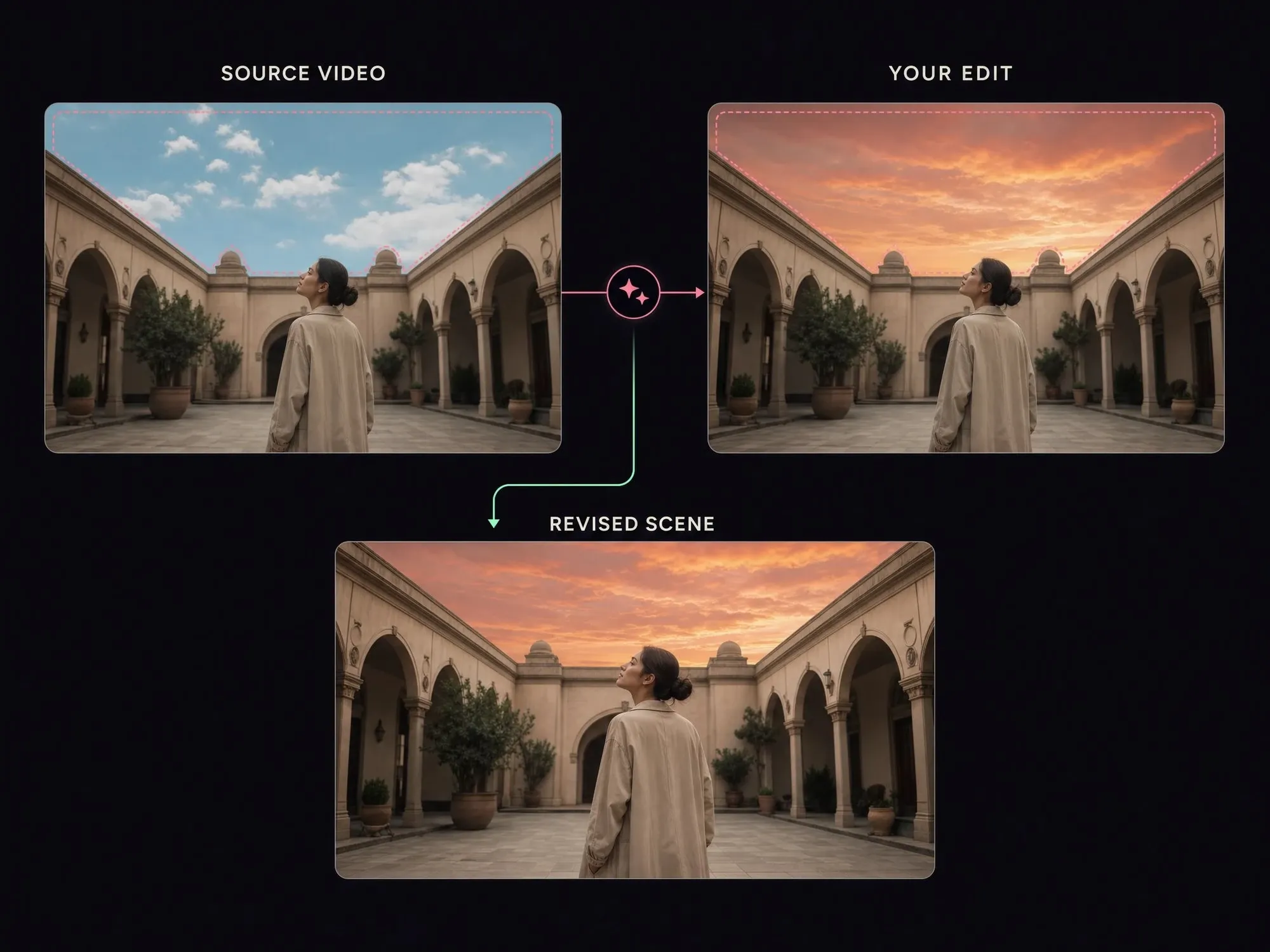
Choose the source video and identify the specific region, object or visual property you want to edit. Model support varies, so review source requirements before deciding whether the workflow fits the task.
Give the model a useful direction
Write one edit at a time. State what changes, where it changes and what must stay unchanged. Replacing a background is a different task from combining clips on a timeline; choose the workflow that matches the actual operation.
Review the details that matter
Replay the entire edited sequence. Check whether the intended change persists, whether untouched areas remain coherent and whether the edit introduces flickering or discontinuities between frames.